How to install openRuyi Workstation
This article explains how to install and use the openRuyi Workstation Edition. The Workstation Edition provides a standard desktop operating system environment.
Before You Begin
You will first need to obtain the openRuyi image files and the corresponding checksum files from the openRuyi download page.
Verify Image Integrity
We provide SHA256 checksums for all image files. You may use any tool that supports the SHA256 algorithm to verify the integrity of the downloaded files.
If the sha256sum command is available on your current system, place the checksum file in the same directory as the installation image and run the following command:
sha256sum openRuyi-xxxx.xx-Workstation-labwc-dvd.iso
Installation Requirements
Before starting the installation, please note the following:
-
Prepare either a DVD or a USB flash drive to write the ISO installation image.
- If you are installing on SG2044, you may instead prepare an NVMe SSD for the ISO installation image. Additionally, you will need an SD card for the EDK2 firmware.
-
Prepare another drive as the target disk for the openRuyi system.
All data on the target disk will be overwritten. Please back up any important data in advance.
Boot from the Installation Media
To start the installation process, insert the DVD into the optical drive, or connect the USB flash drive or other installation media, and then power on the machine.
- If you are installing on SG2044, simply install the NVMe SSD containing the installation image together with the SD card.
Install the System
If the following screen appears, the installation media has booted successfully.
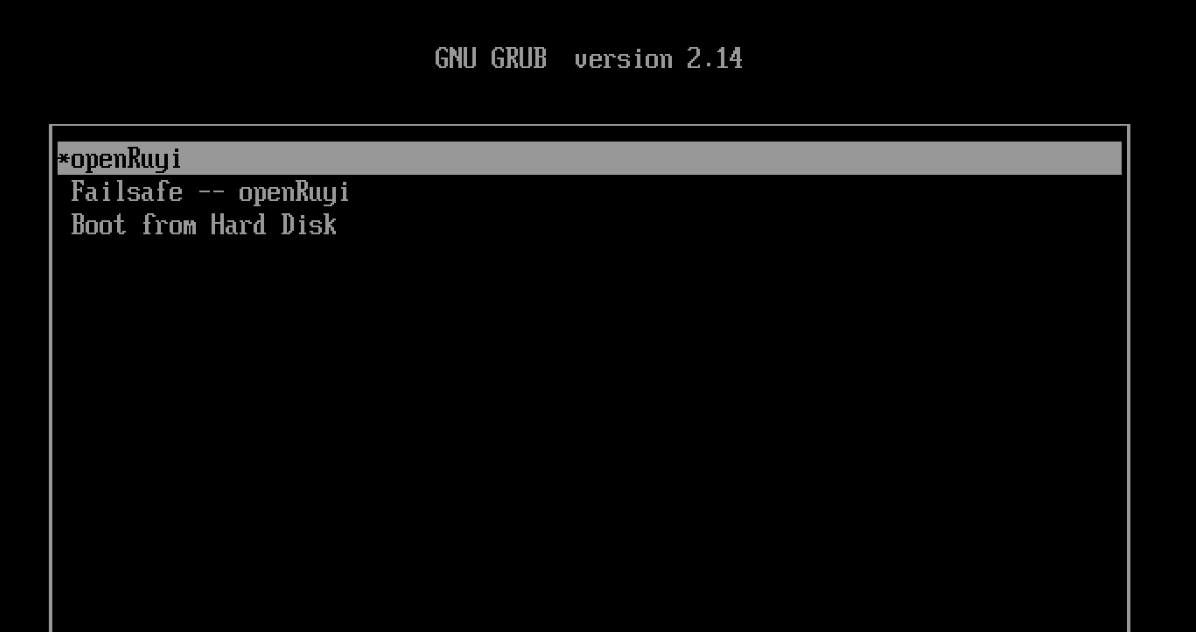
As indicated on the screen, use the Up Arrow, Down Arrow, and Enter keys to select the desired option. Here, choose Install openRuyi.
Click the desktop, then select Launcher from the pop-up menu.
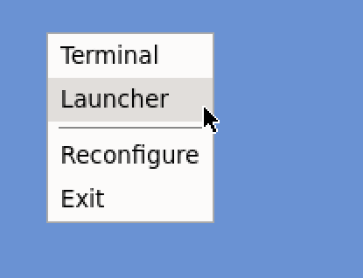
Select Install System.

Configuration
Wait a moment for the installer to launch, then select your language.
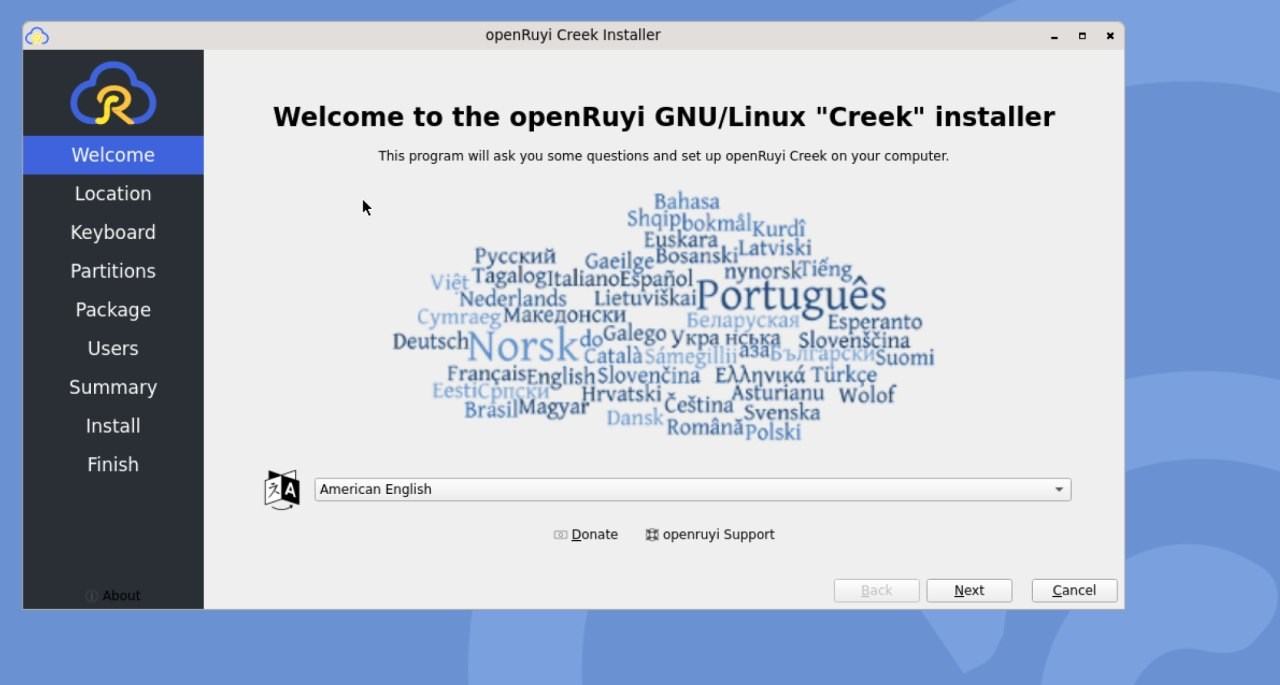
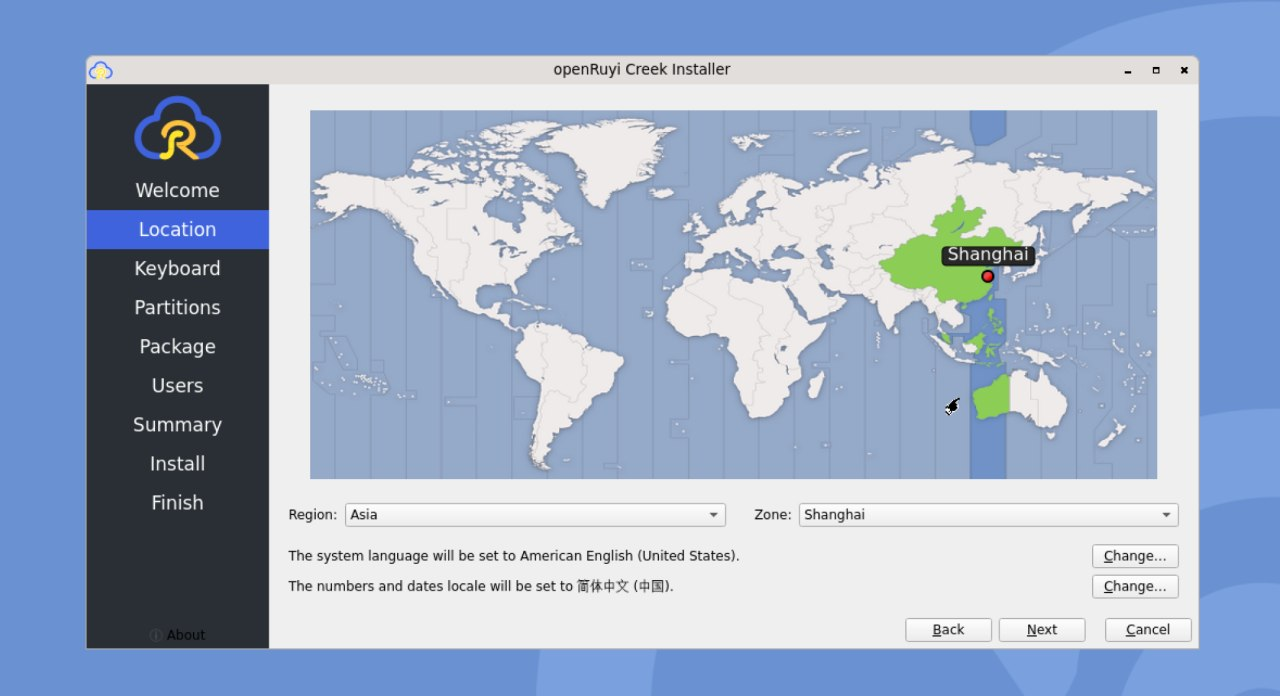
On the next page, select your time zone.
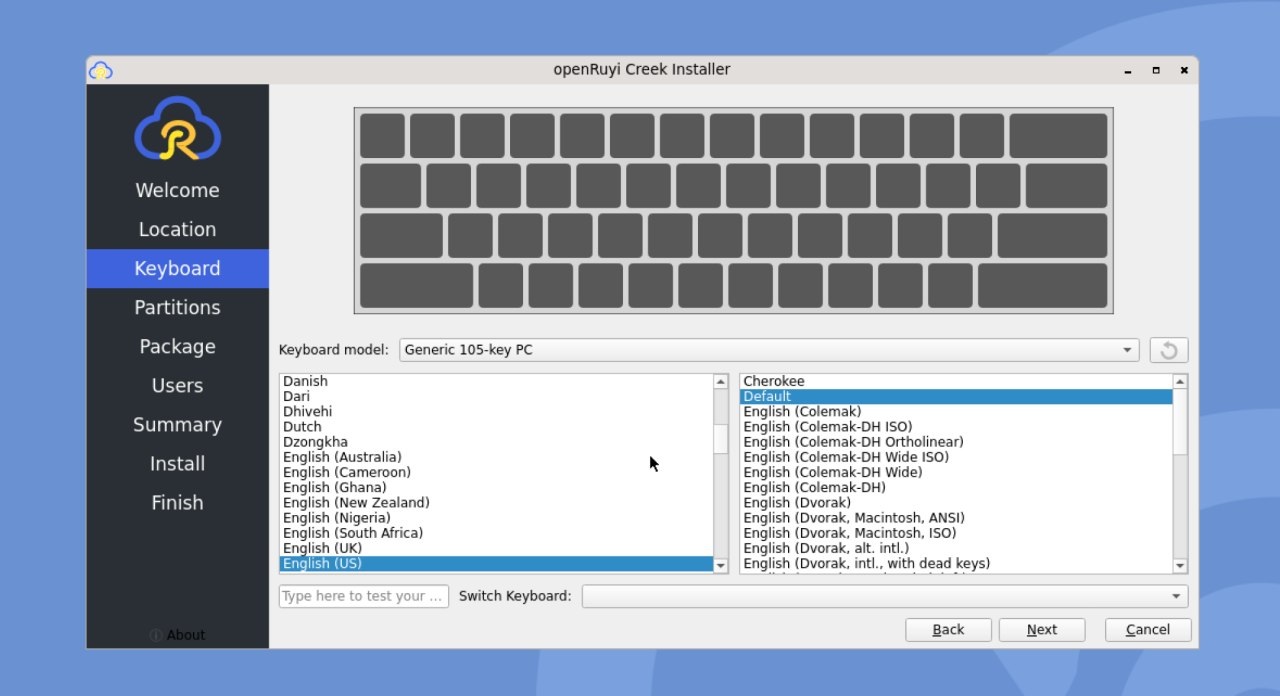
Then select your keyboard layout.
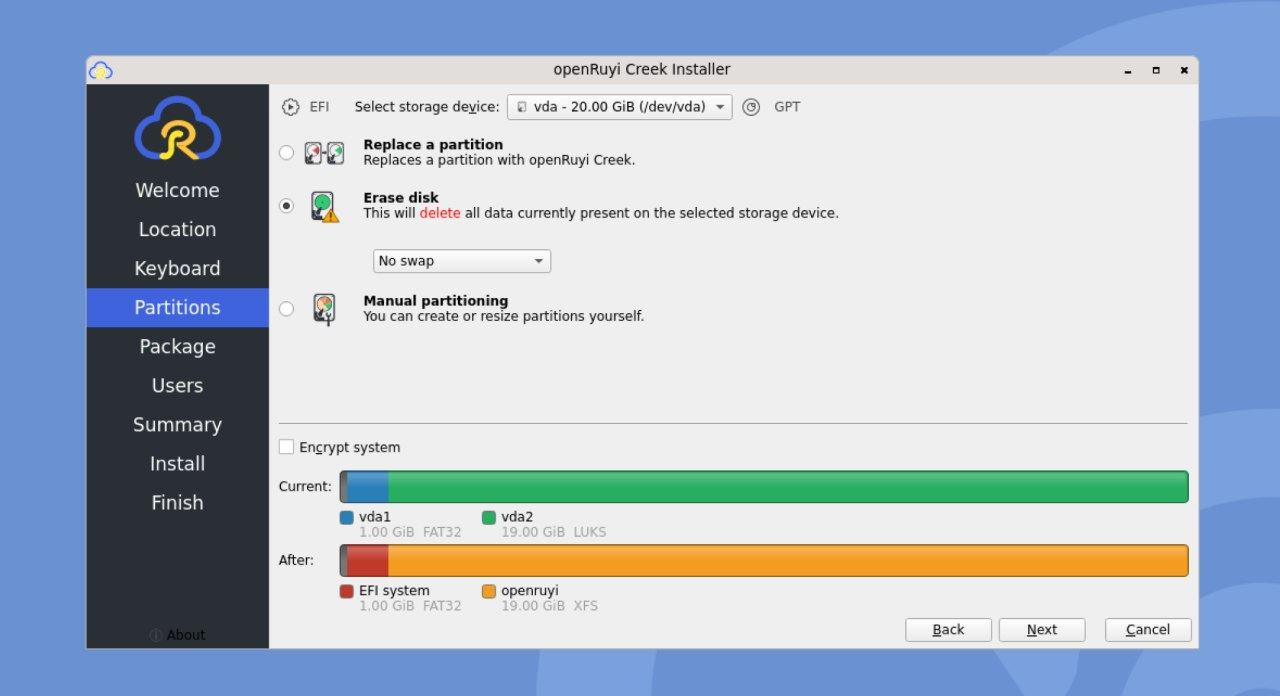
The next step is storage configuration. Carefully select the target disk on which openRuyi will be installed.
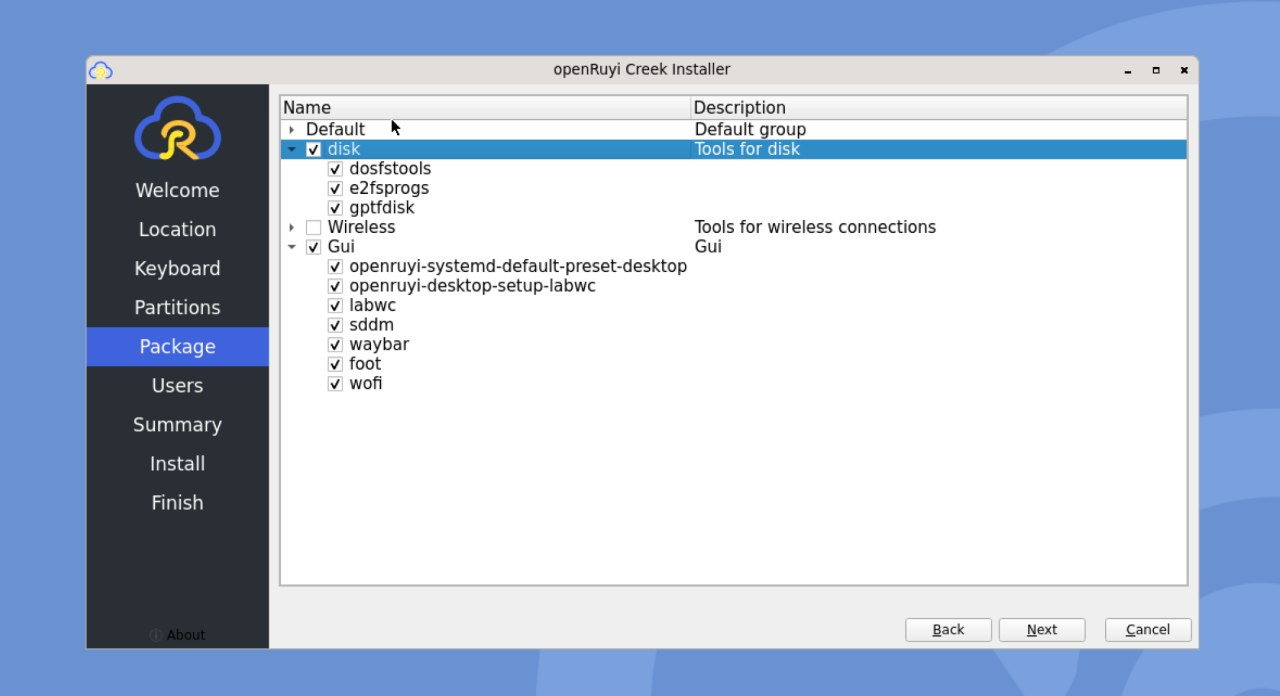
Select which software you want to install.
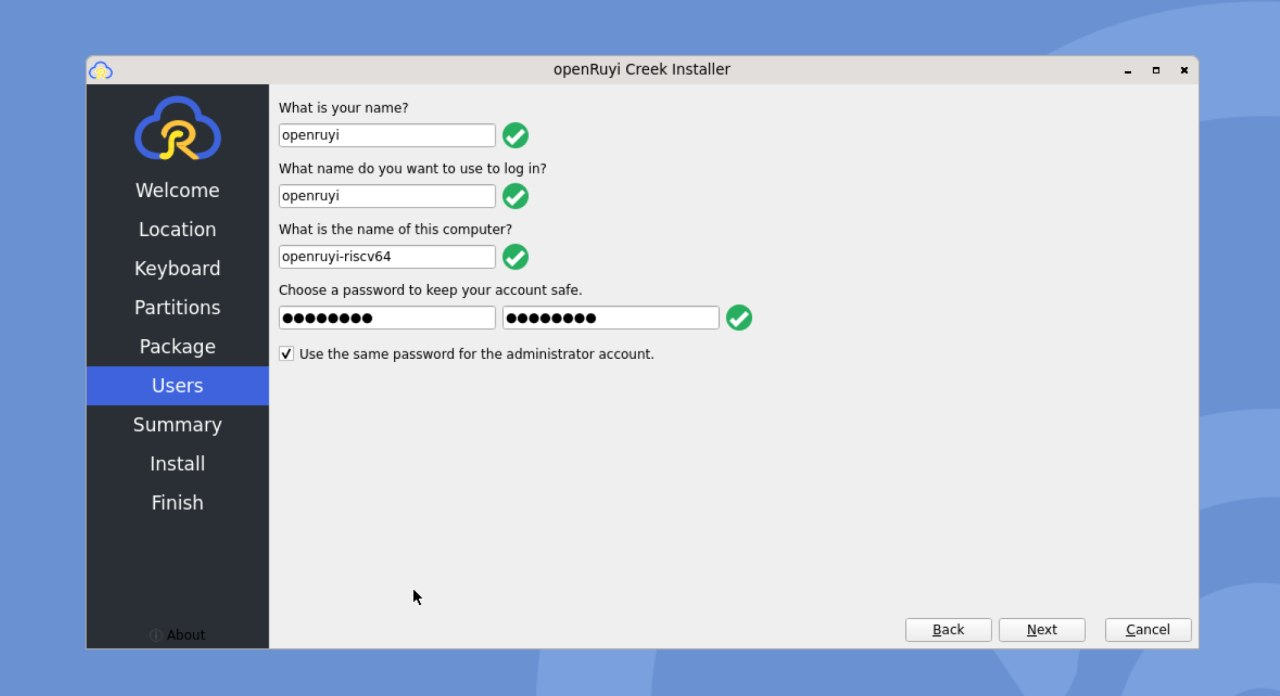
Finally, set up your account infomation.
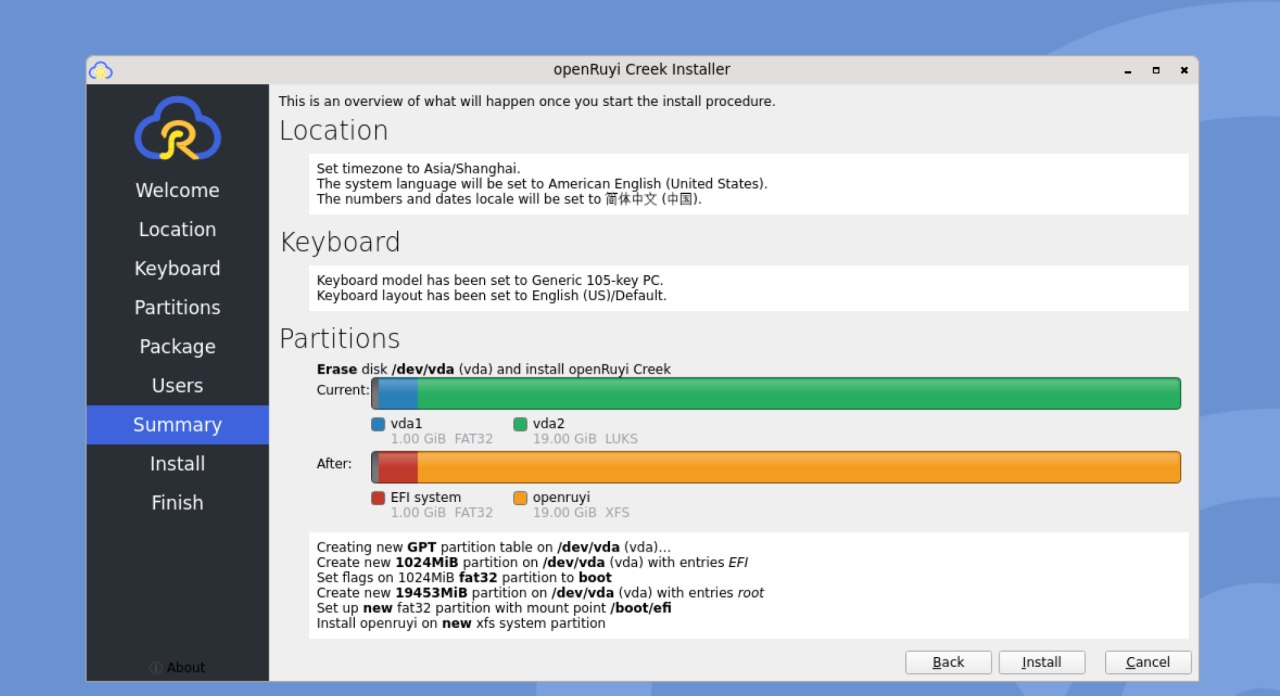
Before clicking install, please double-check your partition layout.
Once it's confirmed, the entire disk will be formatted.
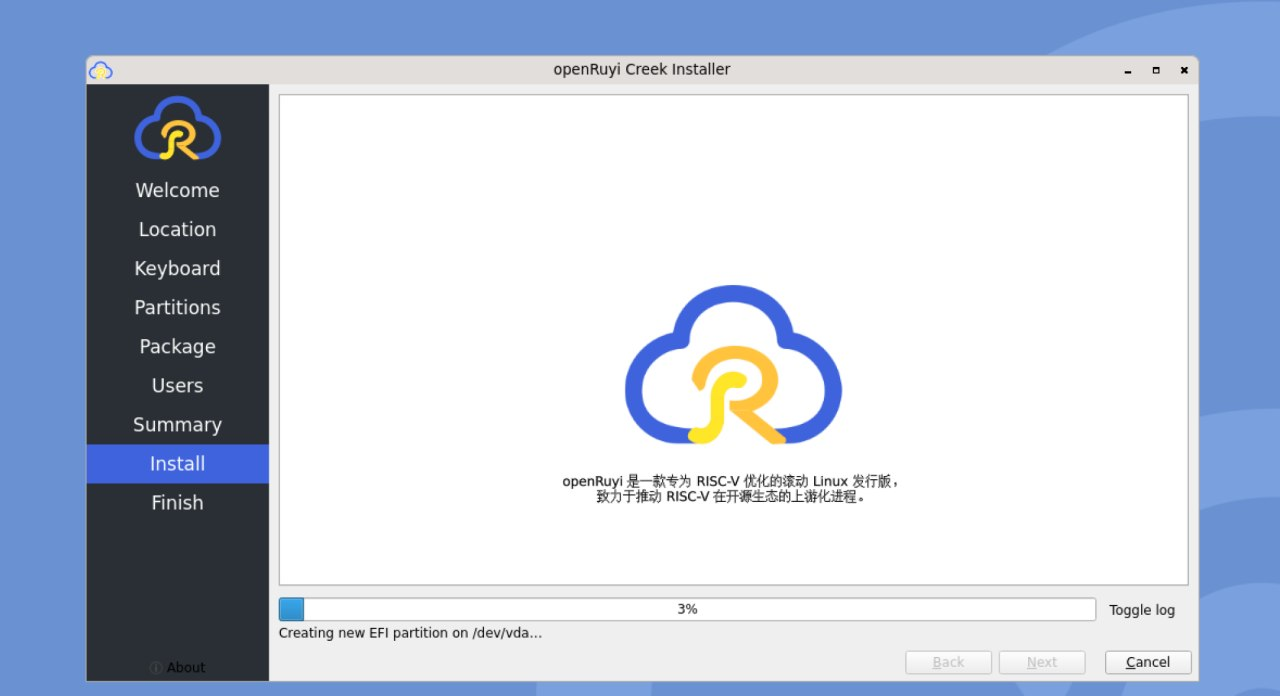
Write the System to Disk
After the installer has collected all required information, it will begin writing the system to disk and display the installation progress.
Installation Complete
Once installation is complete, you can reboot the system. Please remember to remove the installation media.
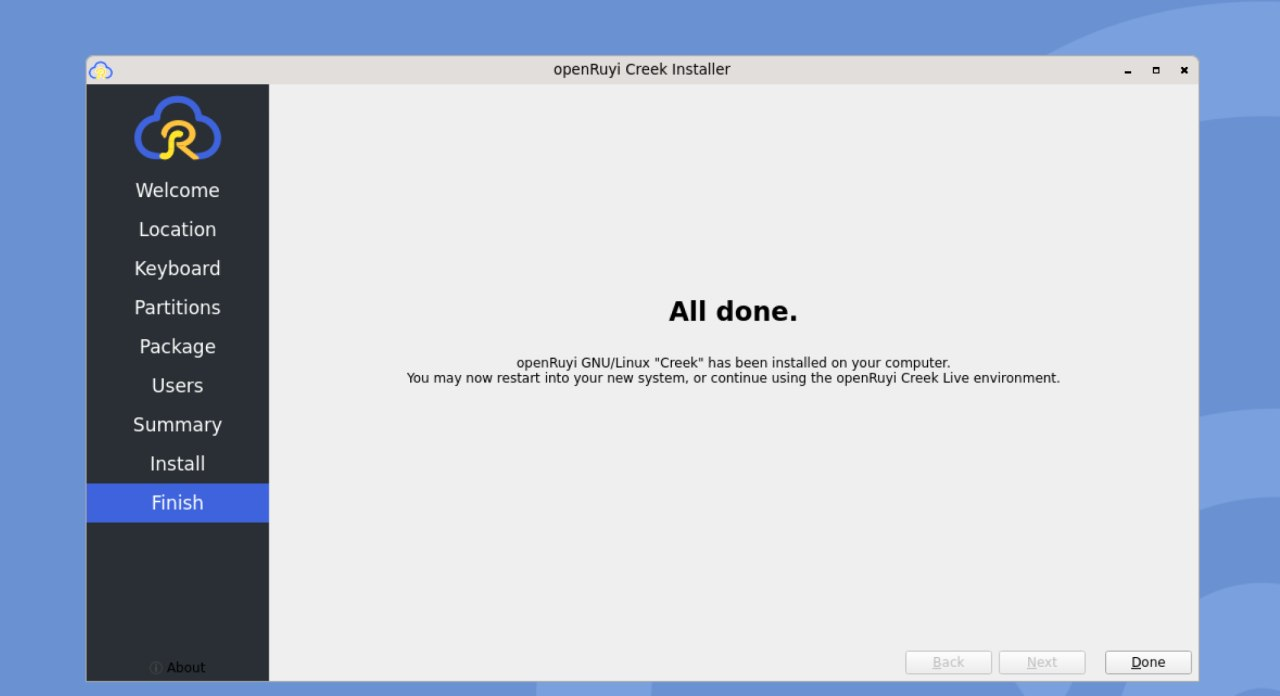
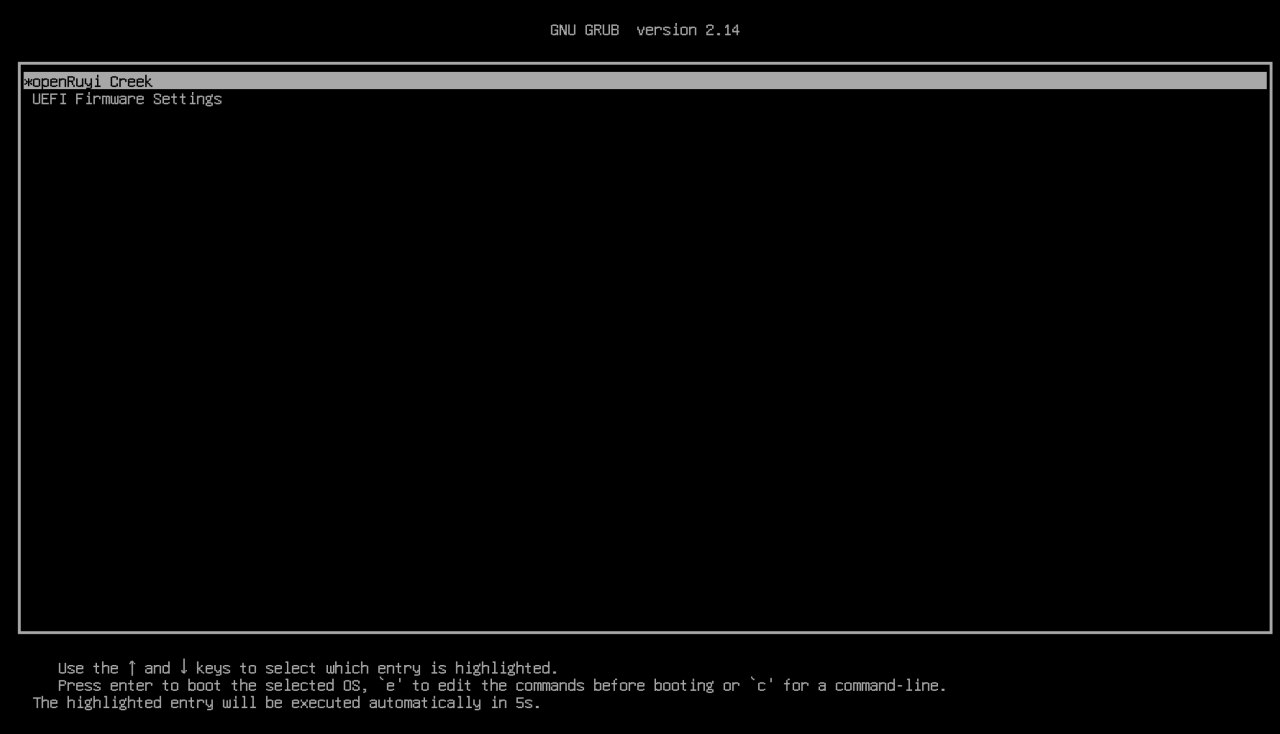
If you see the following screen, the installation has completed successfully. Welcome to openRuyi!